MoveIt Setup Assistant
Prepare
cd
mkdir -p ws_moveit2/src
cd ws_moveit2/src
git clone -b jazzy https://github.com/UniversalRobots/Universal_Robots_ROS2_Description.git
cd ..
rosdep install -y --from-paths src --iry
colcon build --symlink-install
source install/setup.bash
Now look for src/Universal_Robots_ROS2_Description/urdf/ur.urdf.xacro
Warning: This setup is using UR robots instead of the Panda robot. Therefore, please replace panda with ur in the following instructions.
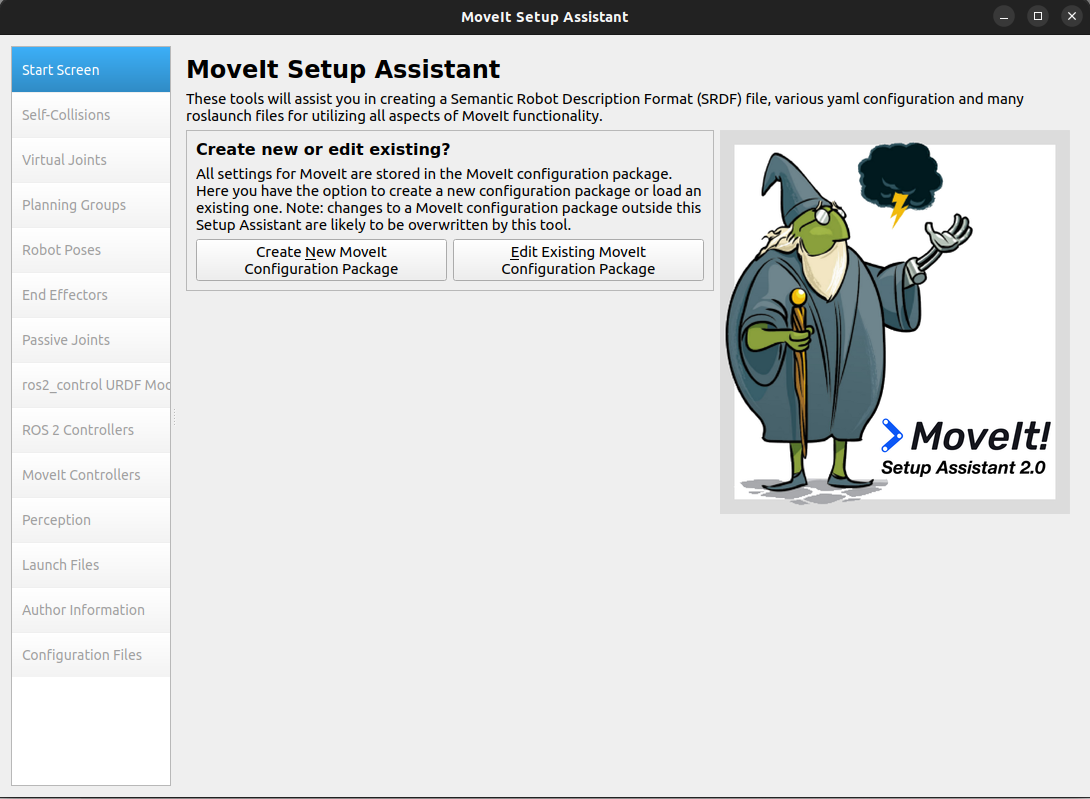
Overview
The MoveIt Setup Assistant is a GUI tool for configuring a robot for MoveIt. It generates a Semantic Robot Description Format (SRDF) file and other necessary configuration files. A URDF is required to use the Setup Assistant.
Once you have a URDF, import it into the Setup Assistant to configure kinematics, planning groups, end effectors, and collision checking.
Getting Started
MoveIt and ROS 2
Install MoveIt if you haven’t already.
Use the
moveit_resources_panda_descriptionpackage, included in your workspace after installation.
Step 1: Start
ros2 launch moveit_setup_assistant setup_assistant.launch.py
Click Create New MoveIt Configuration Package.
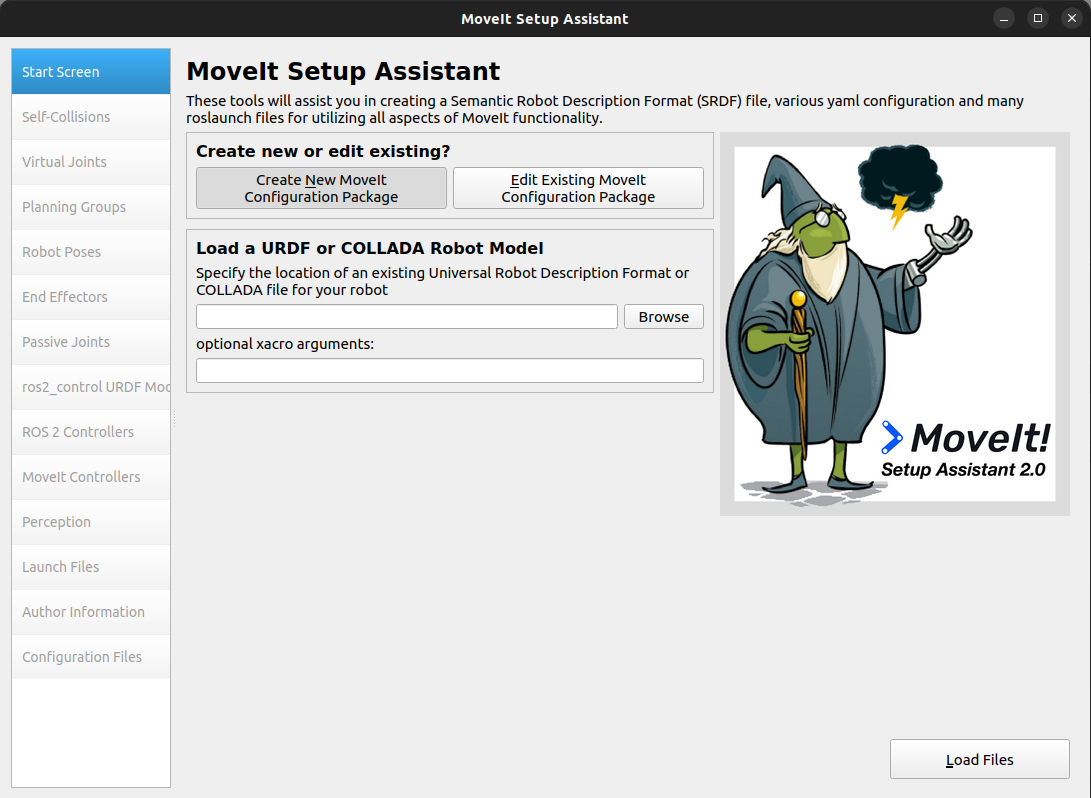
Browse to and load:
~/ws_moveit2/src/moveit_resources/panda_description/urdf/panda.urdf

Step 2: Generate Self-Collision Matrix
Set the sampling density and click Generate Collision Matrix.
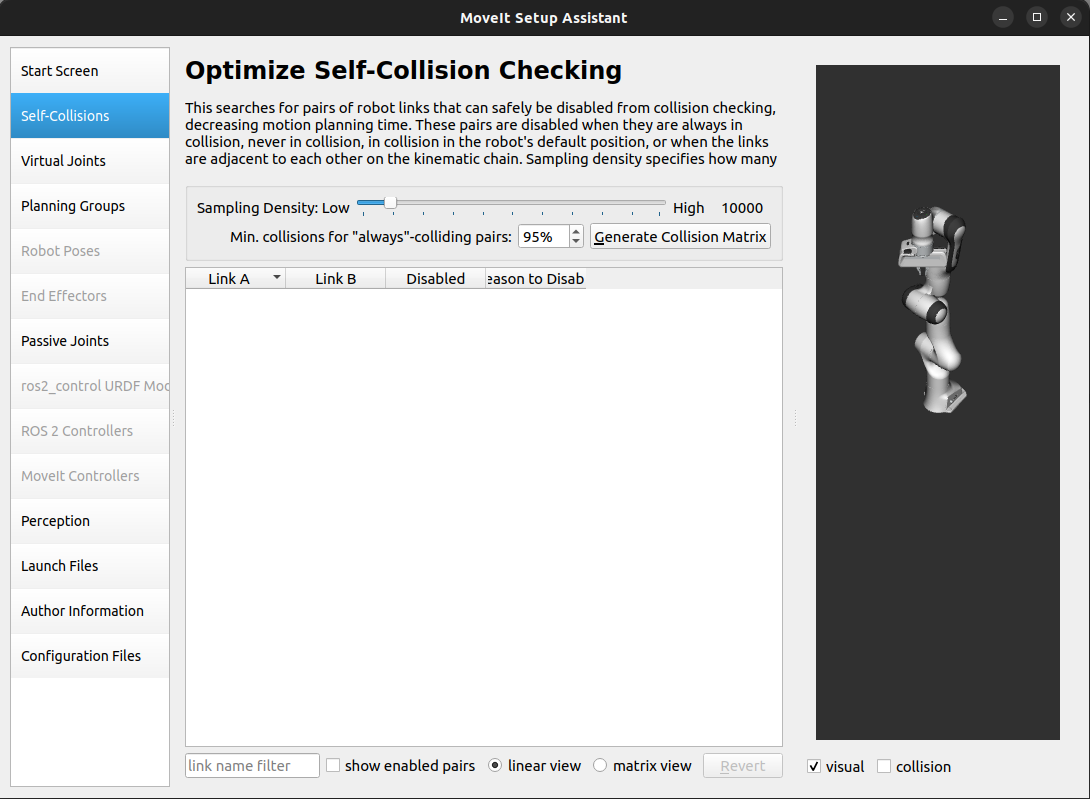
View and modify results:
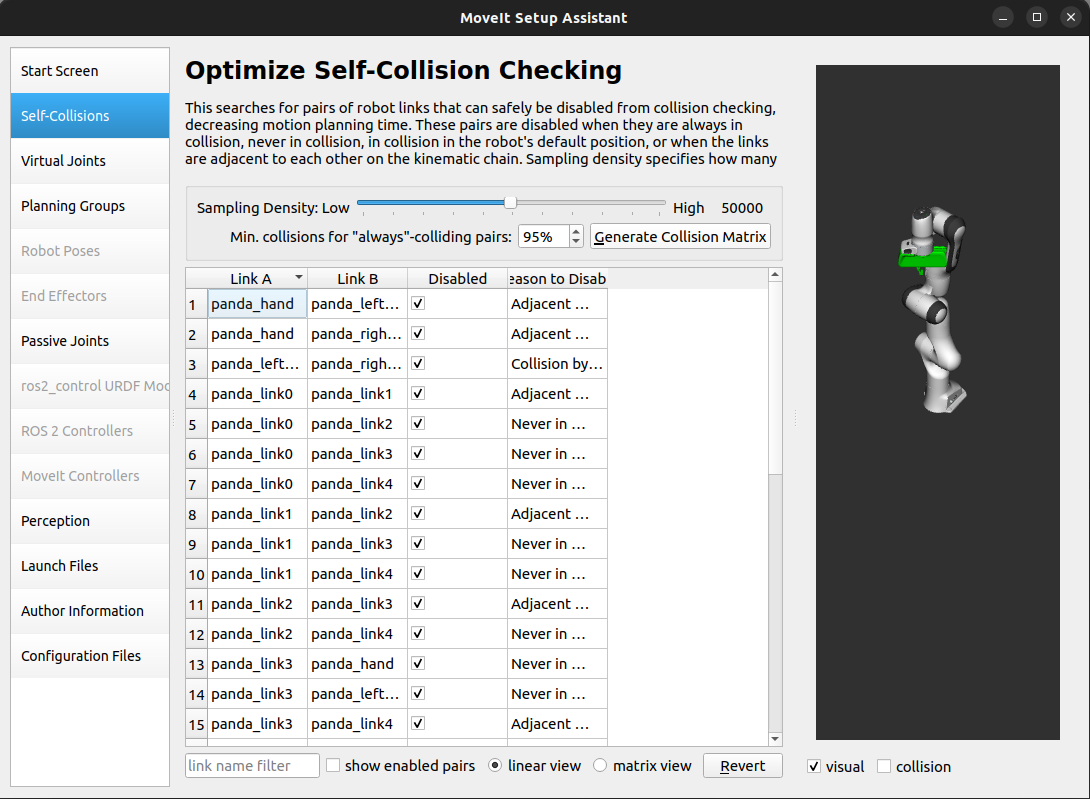
Step 3: Add Virtual Joints
Joint Name:
virtual_jointChild Link:
panda_link0Parent Frame:
worldType:
fixed
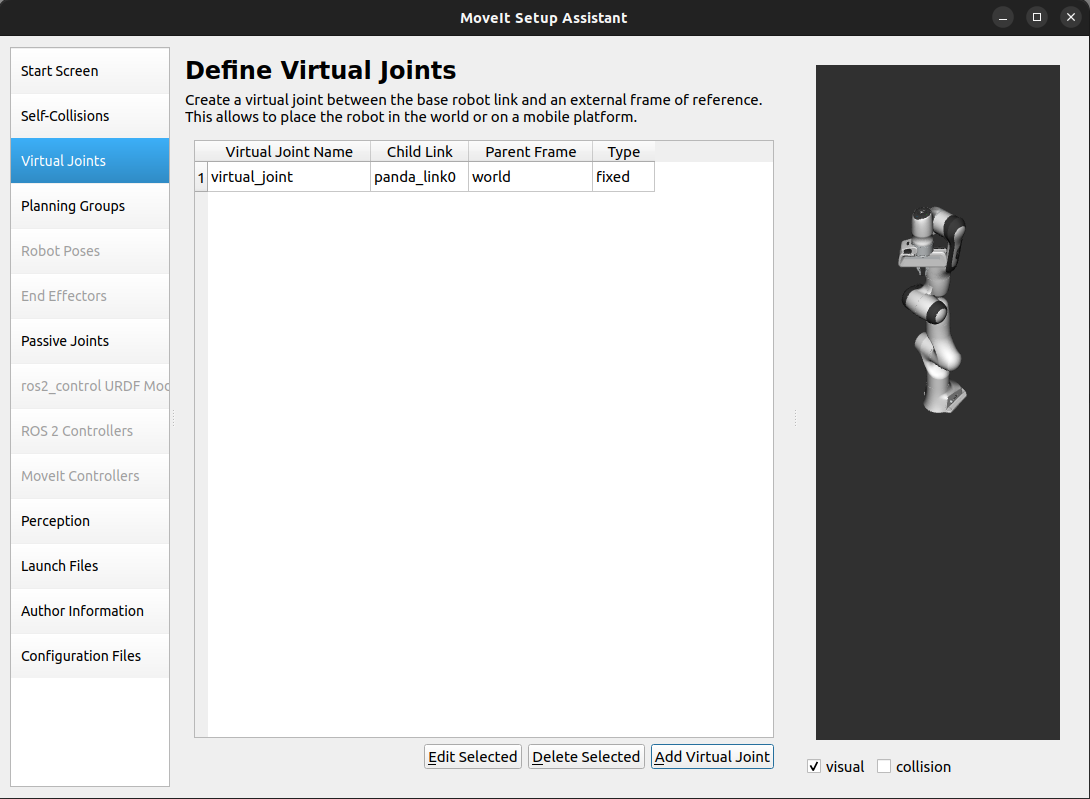
For mobile robots, use planar or floating joints.
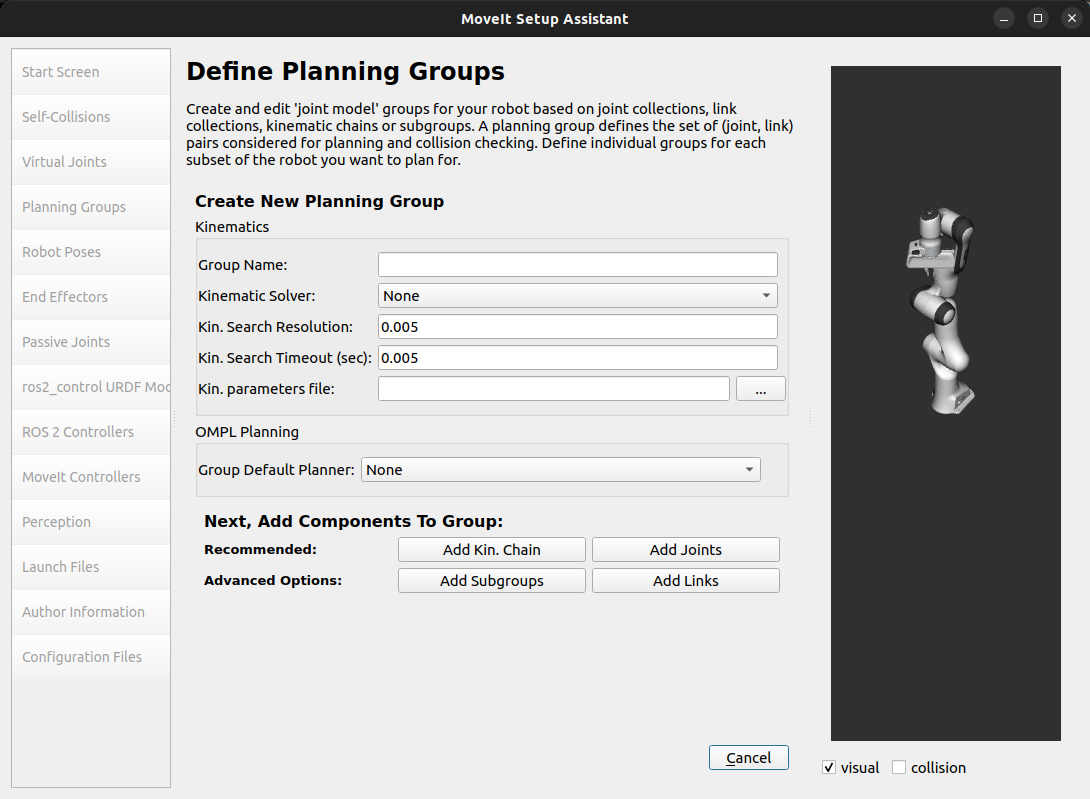
Step 4: Add Planning Groups
Arm Group
Name:
panda_armSolver:
kdl_kinematics_plugin/KDLKinematicsPlugin
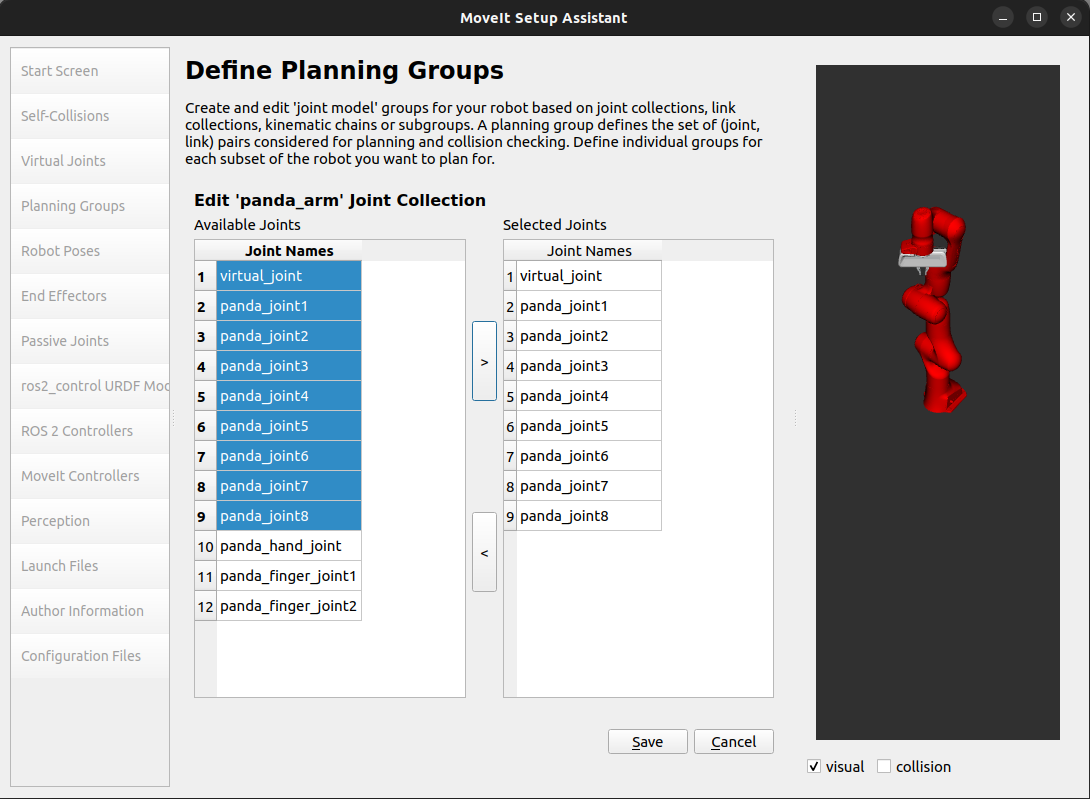
Select joints from virtual_joint to panda_joint8:
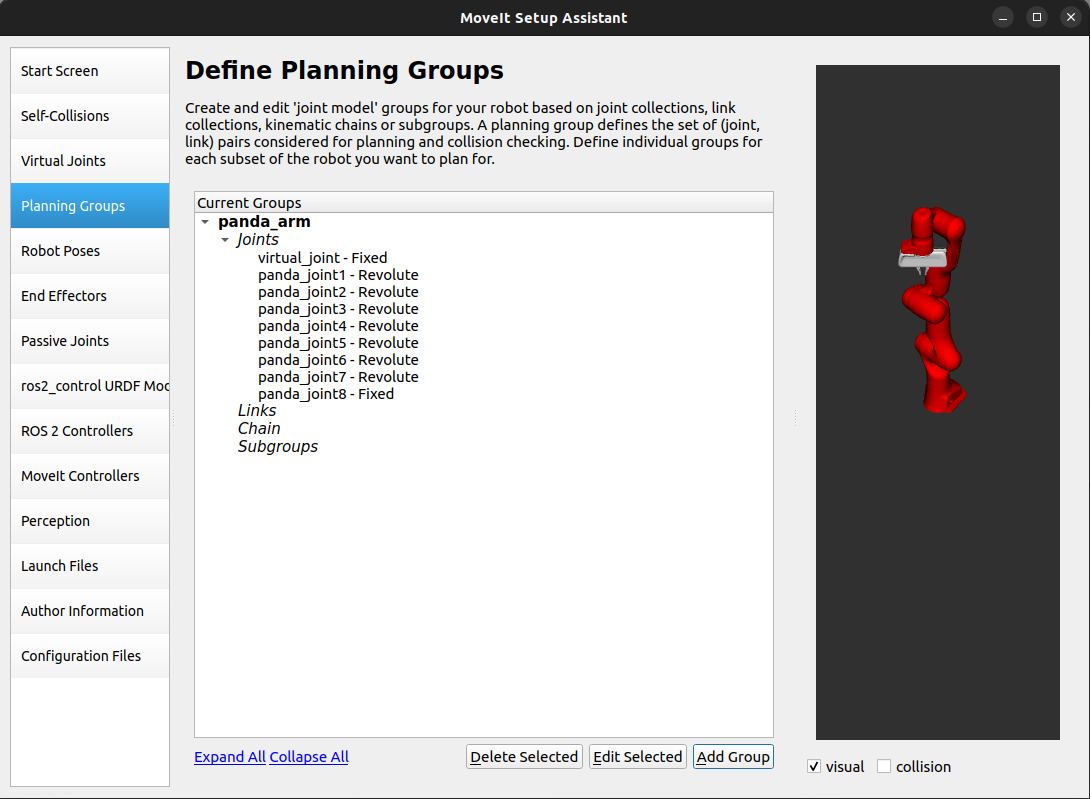
Save group:
End Effector Group
Name:
handSolver:
NoneLinks:
panda_hand,panda_leftfinger,panda_rightfinger
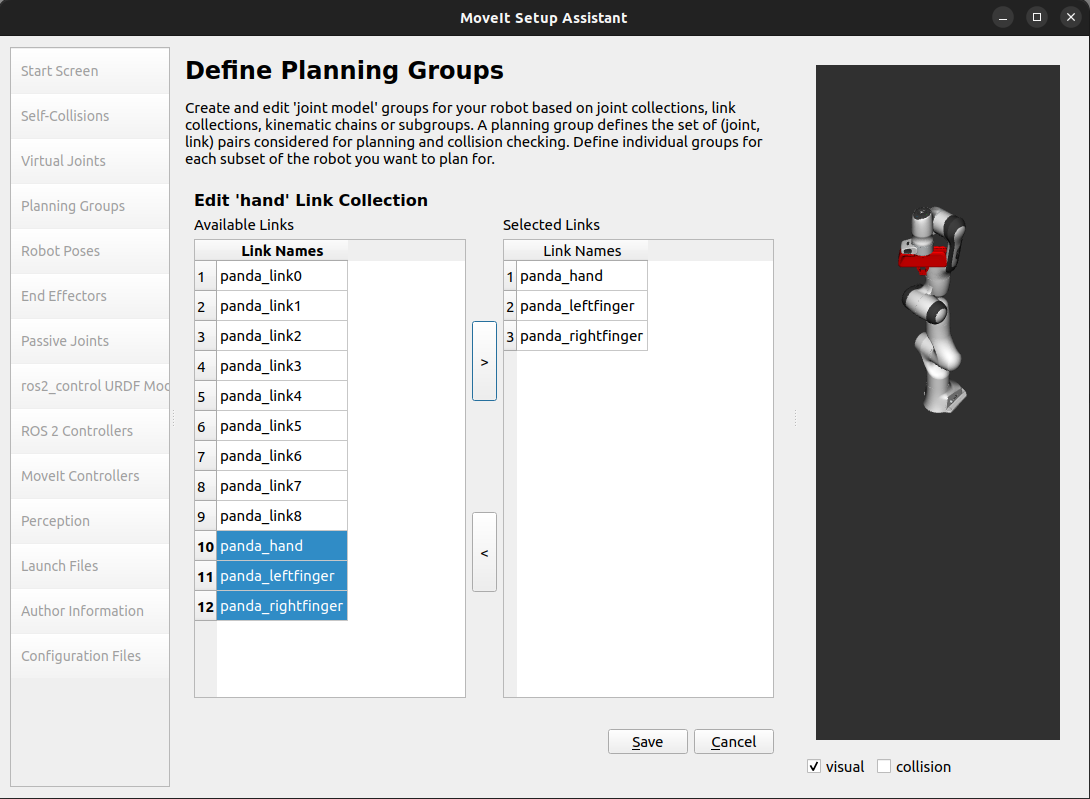
Final group list:
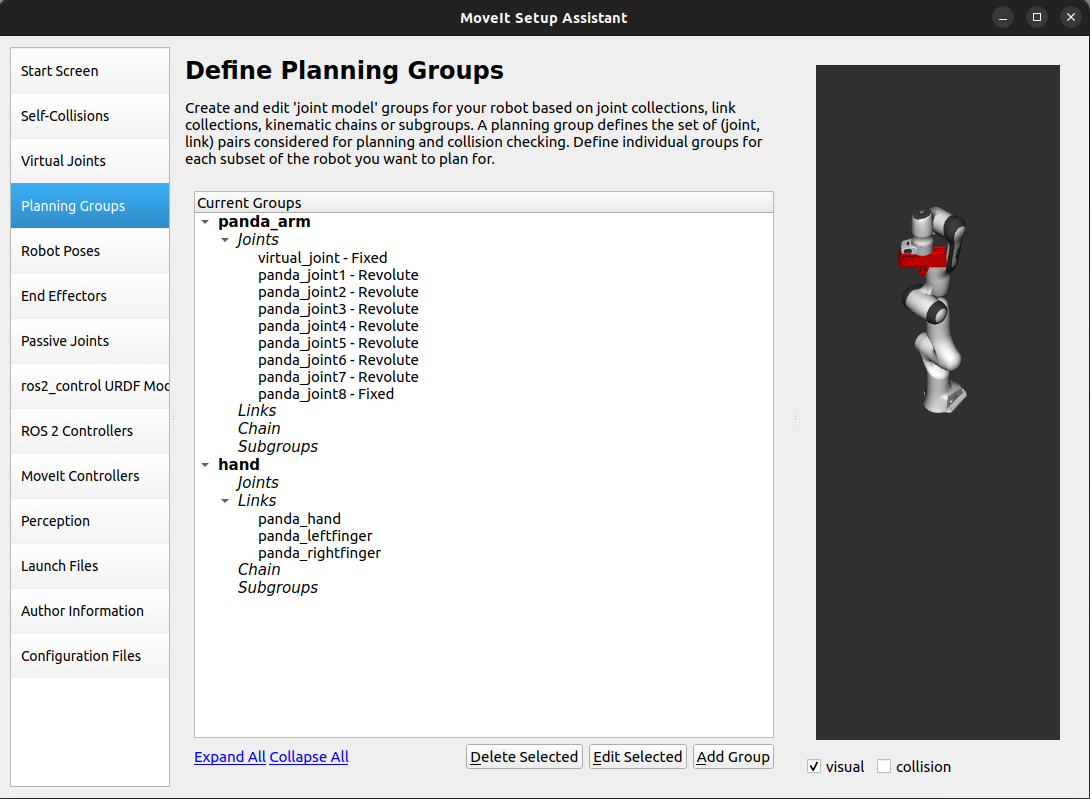
Use Add Subgroup for compound groups (e.g., dual-arm systems).
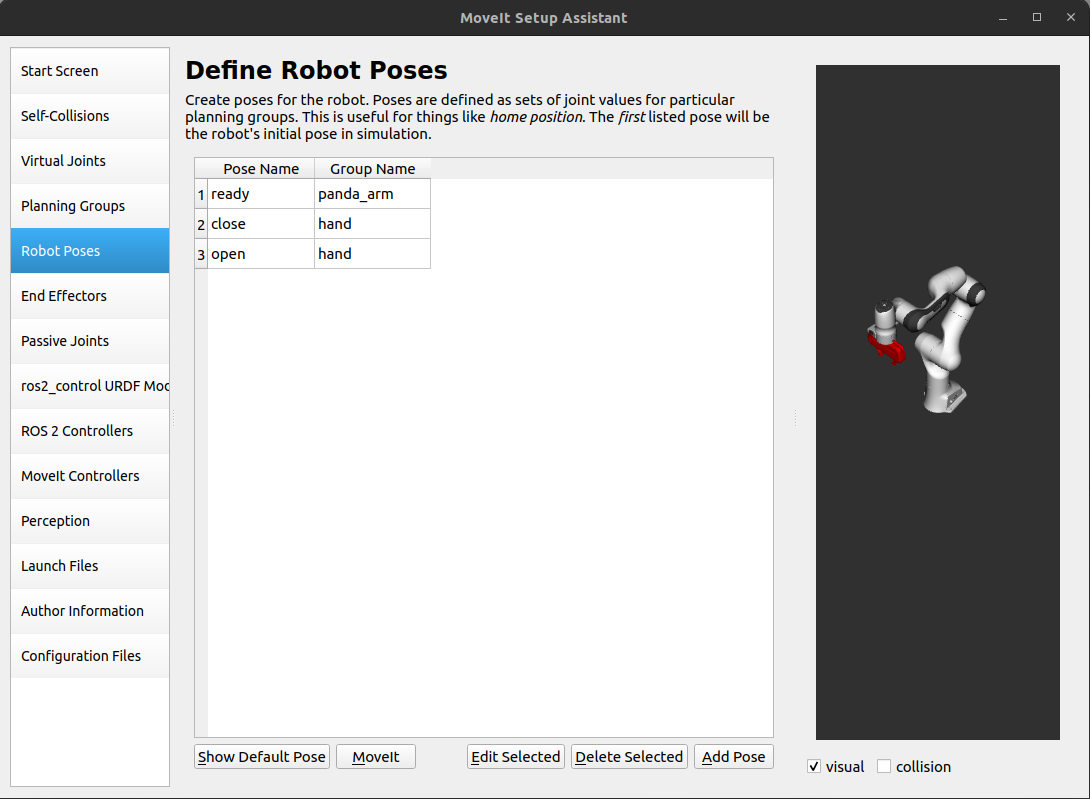
Step 5: Add Robot Poses
Ready Pose for Arm
Group:
panda_armPose:
readyValues:
{0.0, -0.785, 0.0, -2.356, 0.0, 1.571, 0.785}
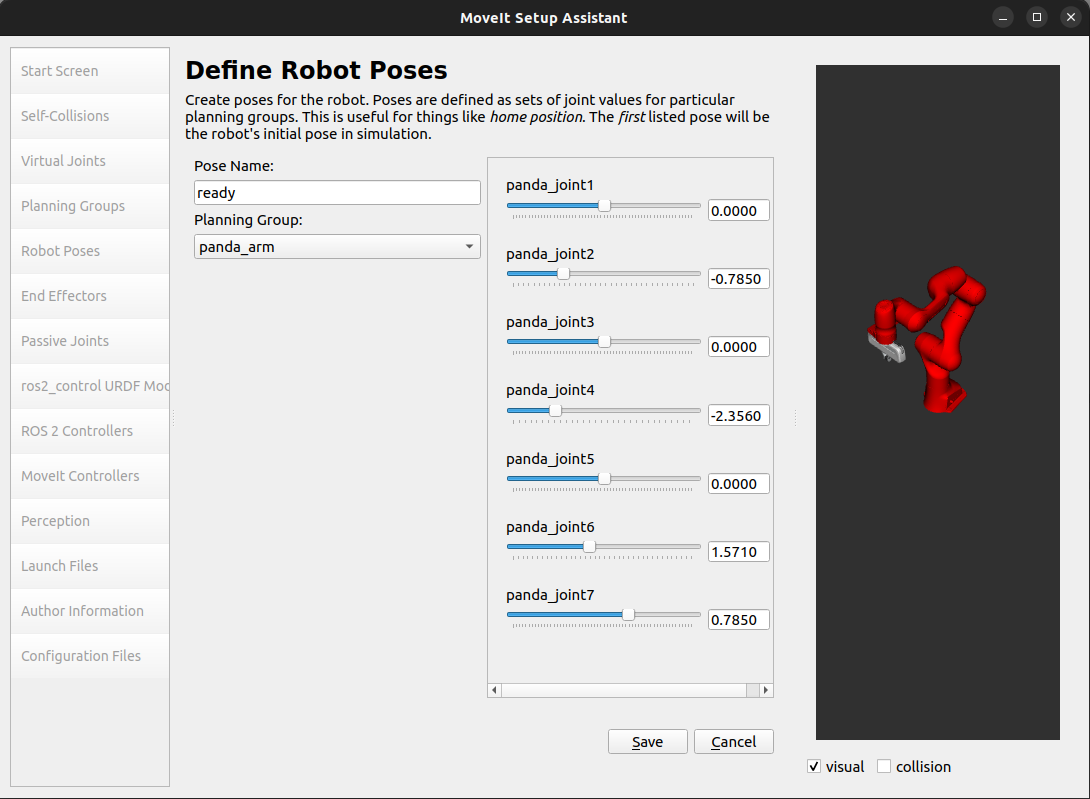
Open/Close Poses for Hand
Group:
handopen:0.035close:0.0
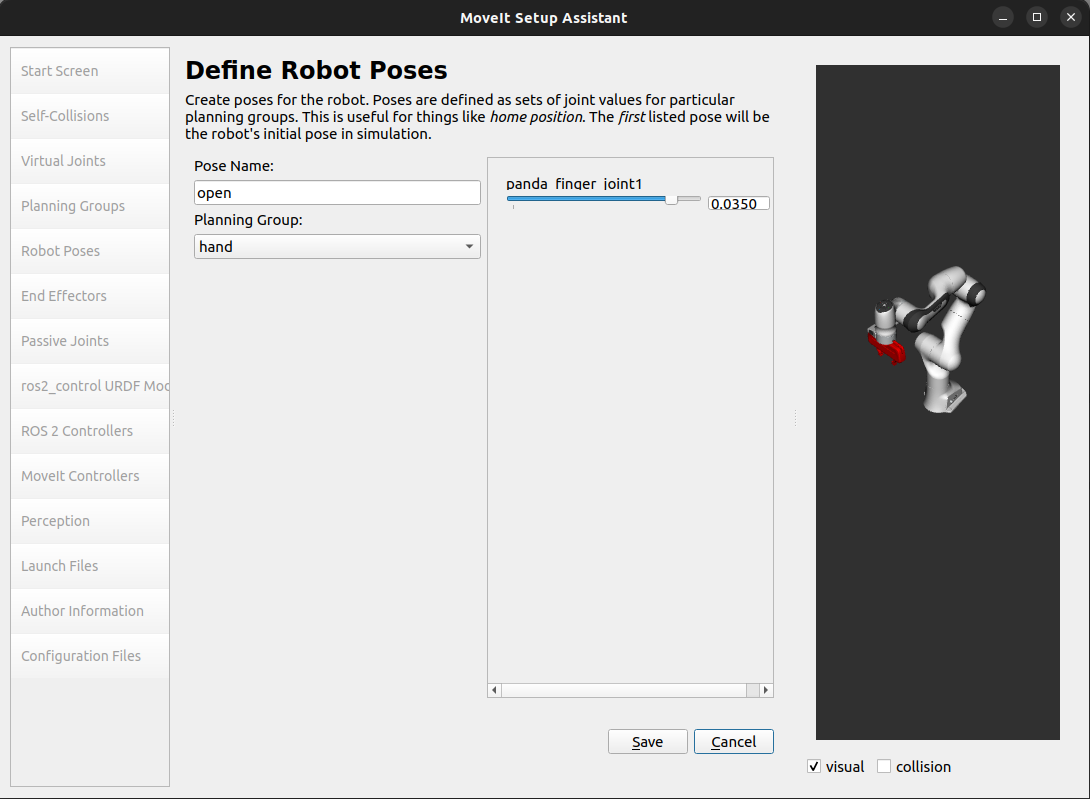
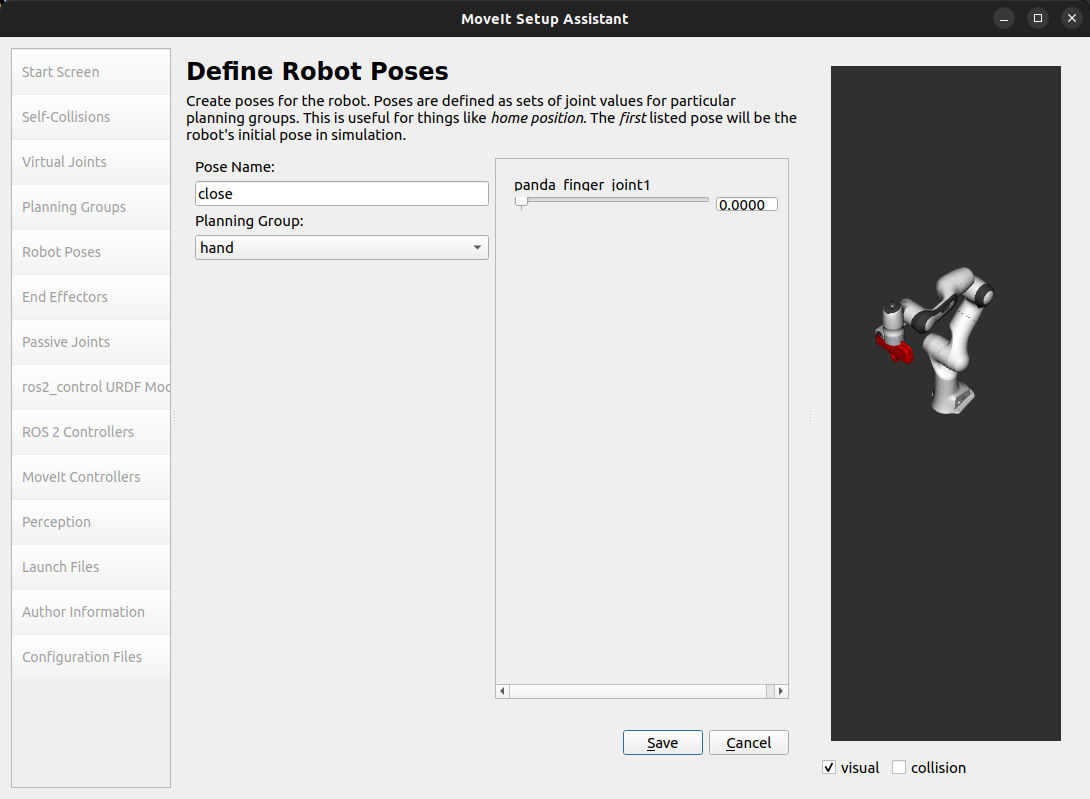
Only
panda_finger_joint1is shown aspanda_finger_joint2mimics it.
Final poses:
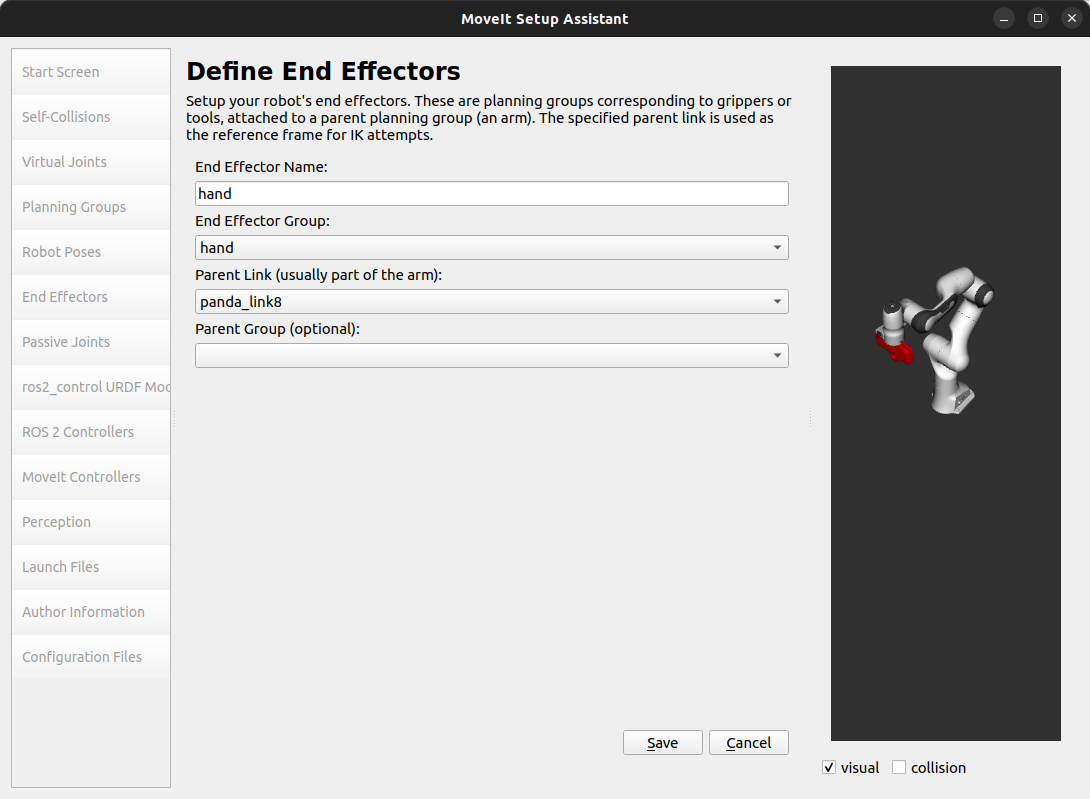
Step 6: Label End Effectors
Name:
handGroup:
handParent Link:
panda_link8
Step 7: Add Passive Joints
Skip this step for Panda. Use if robot has unactuated joints.
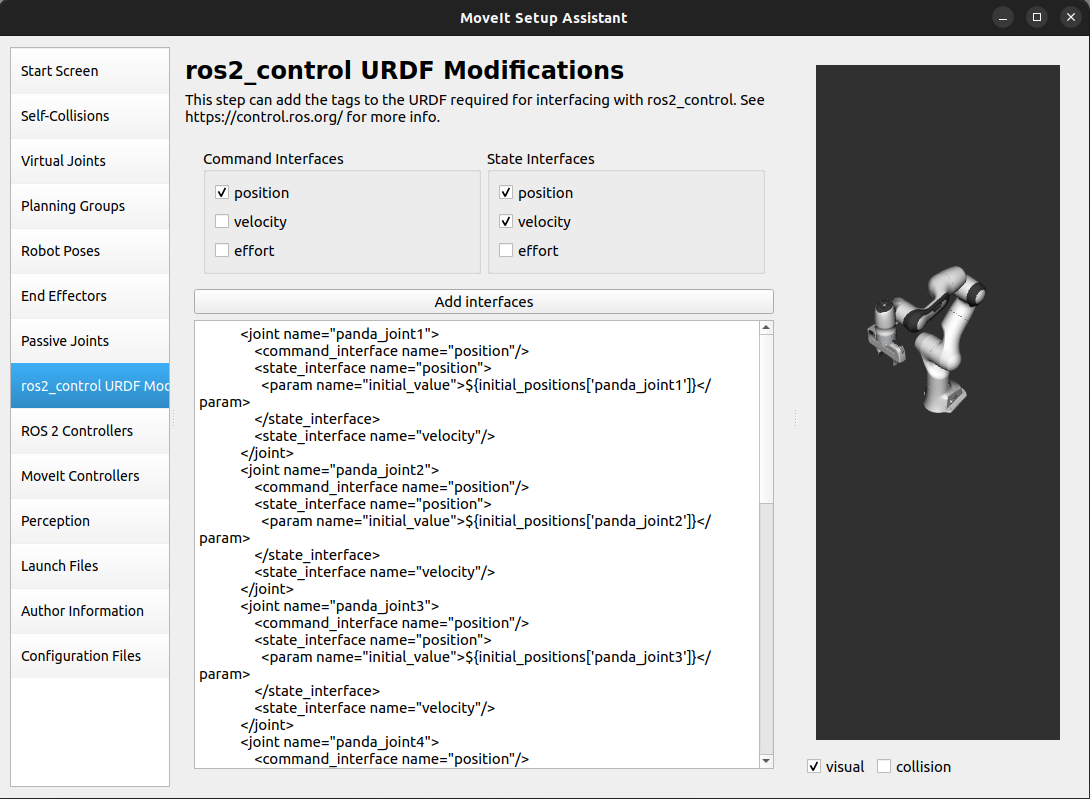
Step 8: ros2_control URDF Modification
Define command/state interfaces (default: position command; position + velocity states).
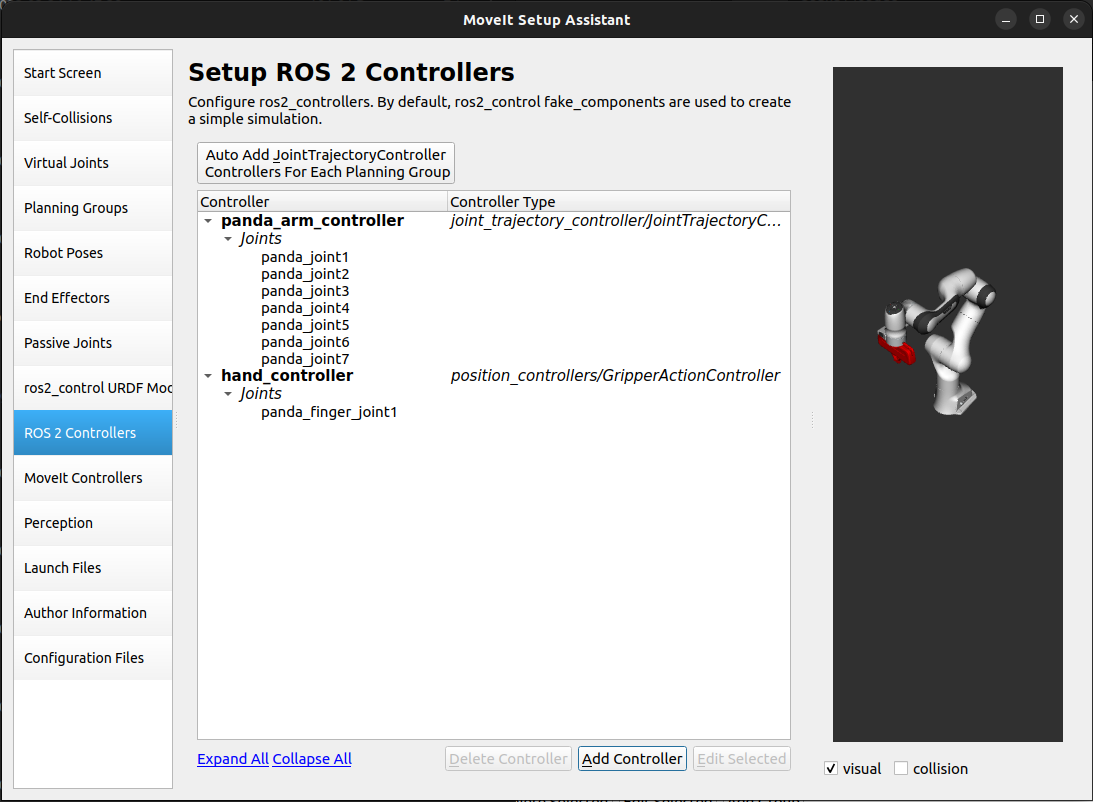
Step 9: ROS 2 Controllers
Panda Arm Controller
Name:
panda_arm_controllerType:
joint_trajectory_controller/JointTrajectoryControllerGroup:
panda_arm
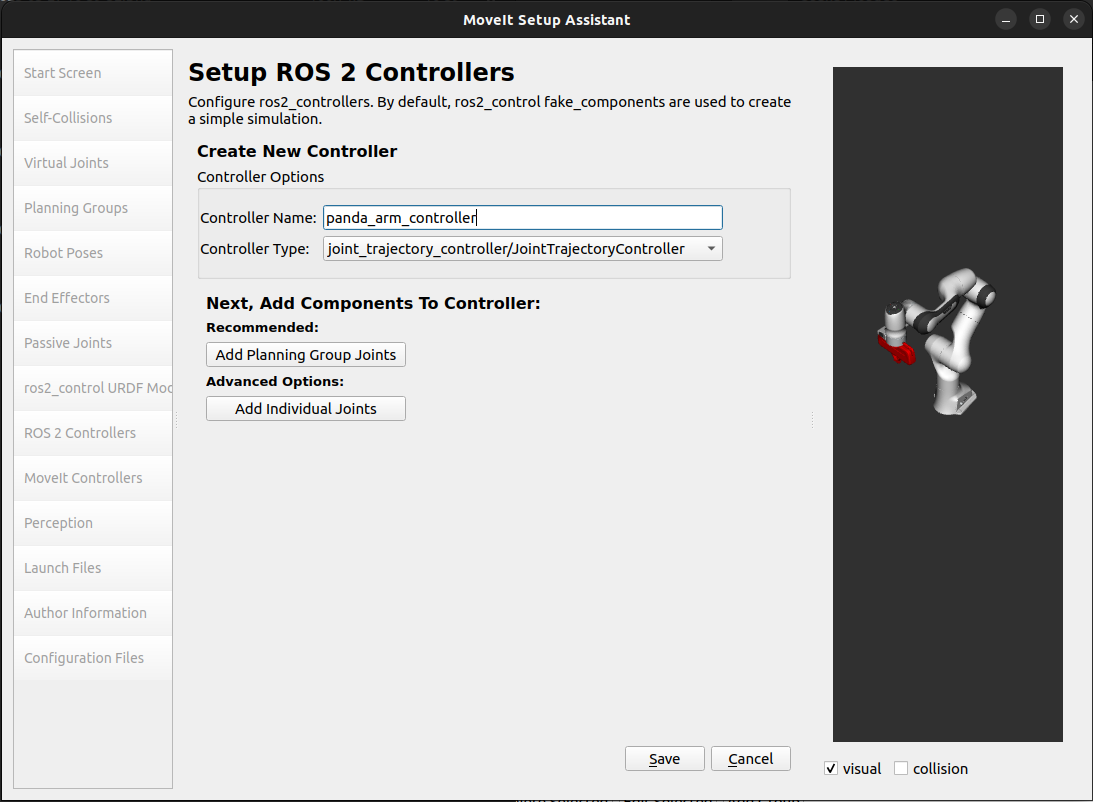
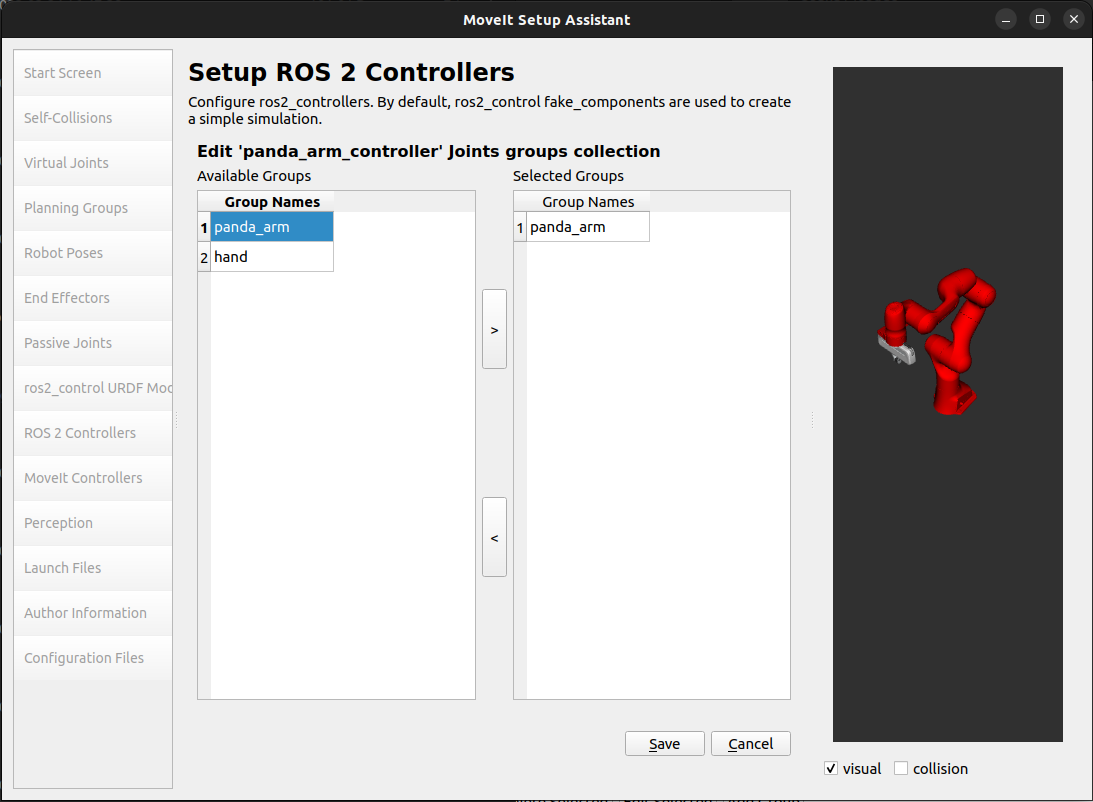
Hand Controller
Name:
hand_controllerType:
position_controllers/GripperActionControllerGroup:
hand
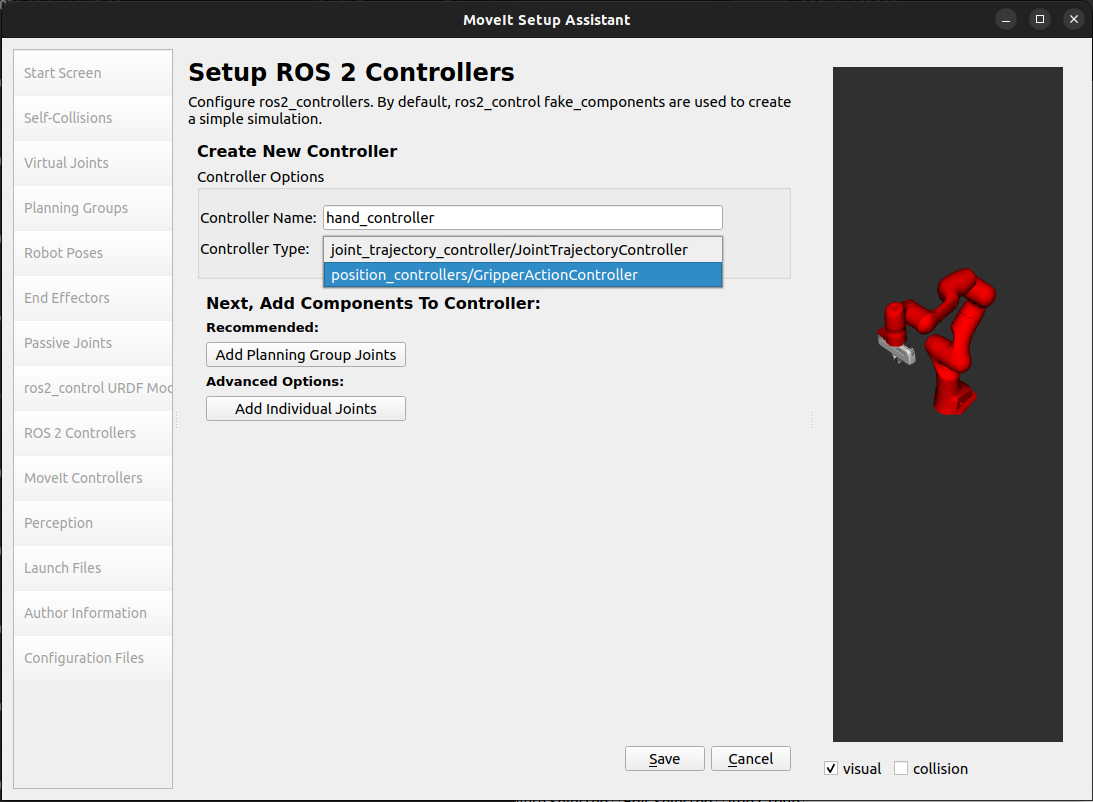
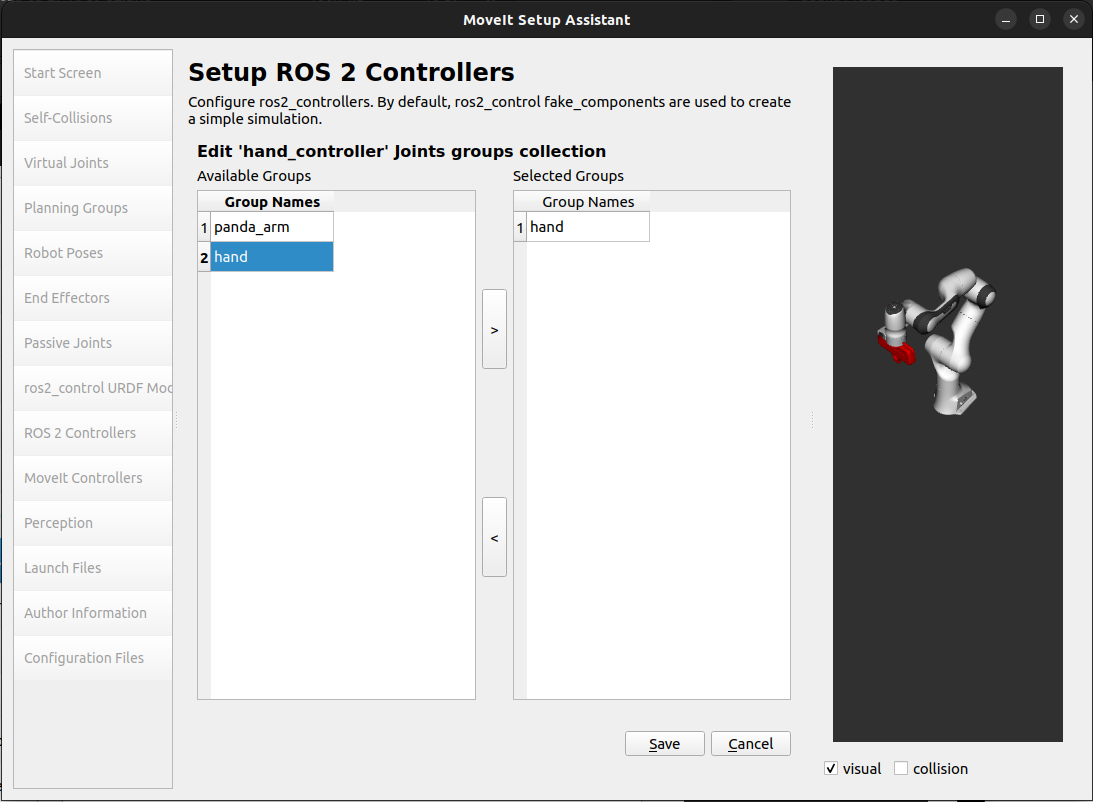
Final list:
Step 10: MoveIt Controllers
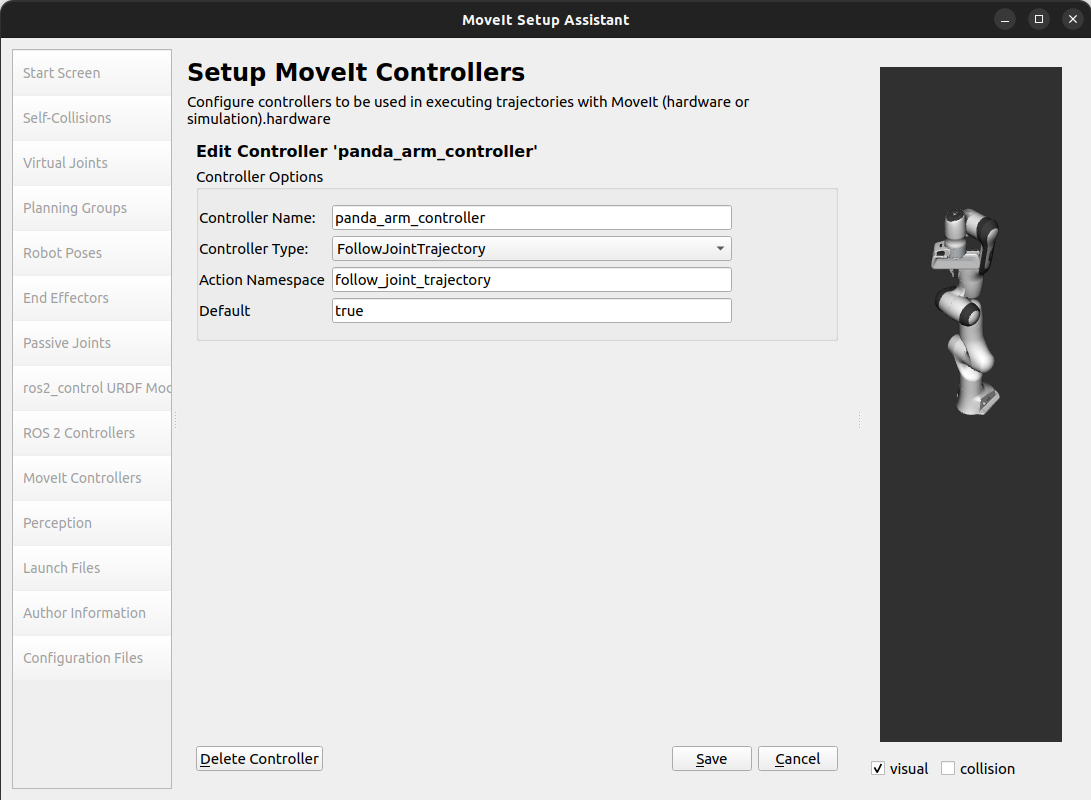
Configure MoveIt interfaces to match ROS 2 controllers.
Arm
Name:
panda_arm_controllerType:
FollowJointTrajectoryGroup:
panda_arm
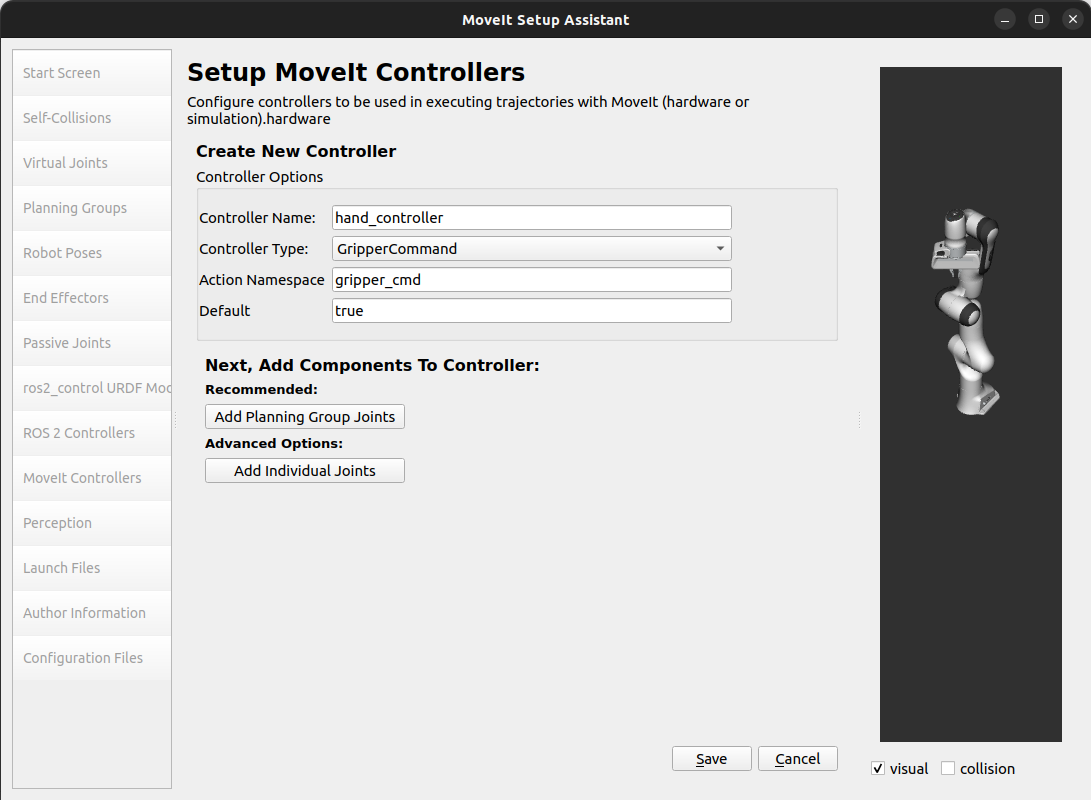
Hand
Name:
hand_controllerType:
Gripper CommandGroup:
hand
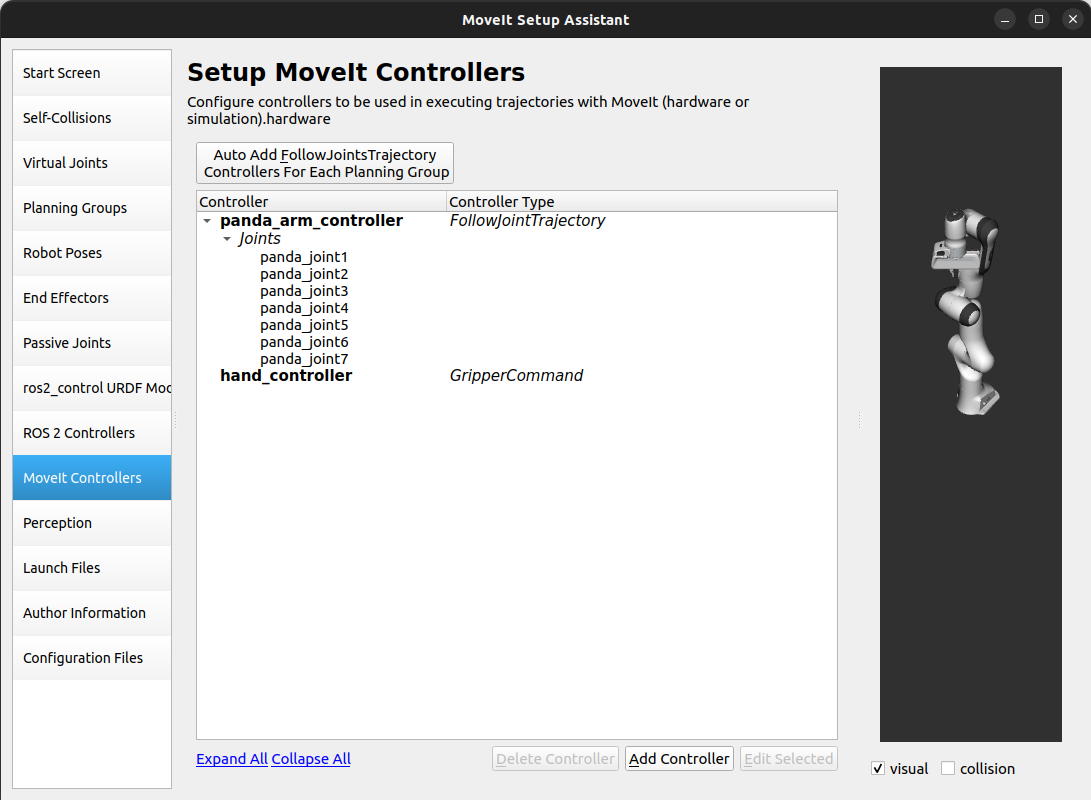
Final MoveIt controller list:
Step 11: Perception
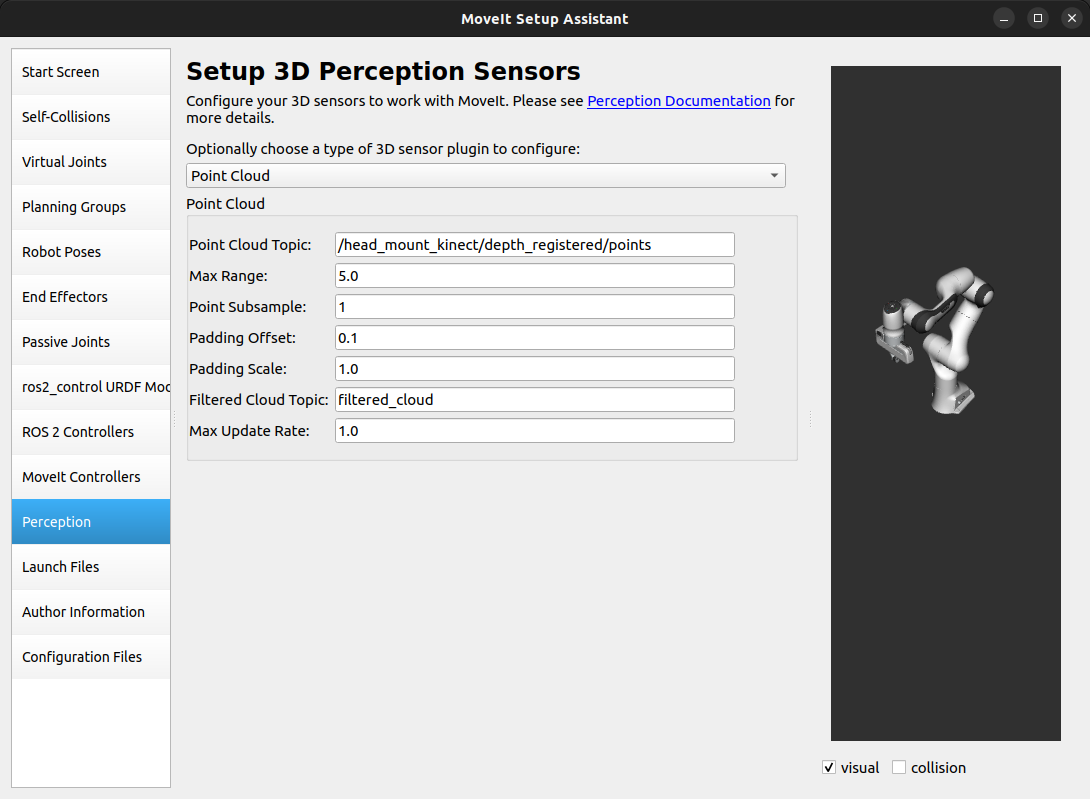
Use this pane to define 3D sensors. Skip or choose None if not needed.
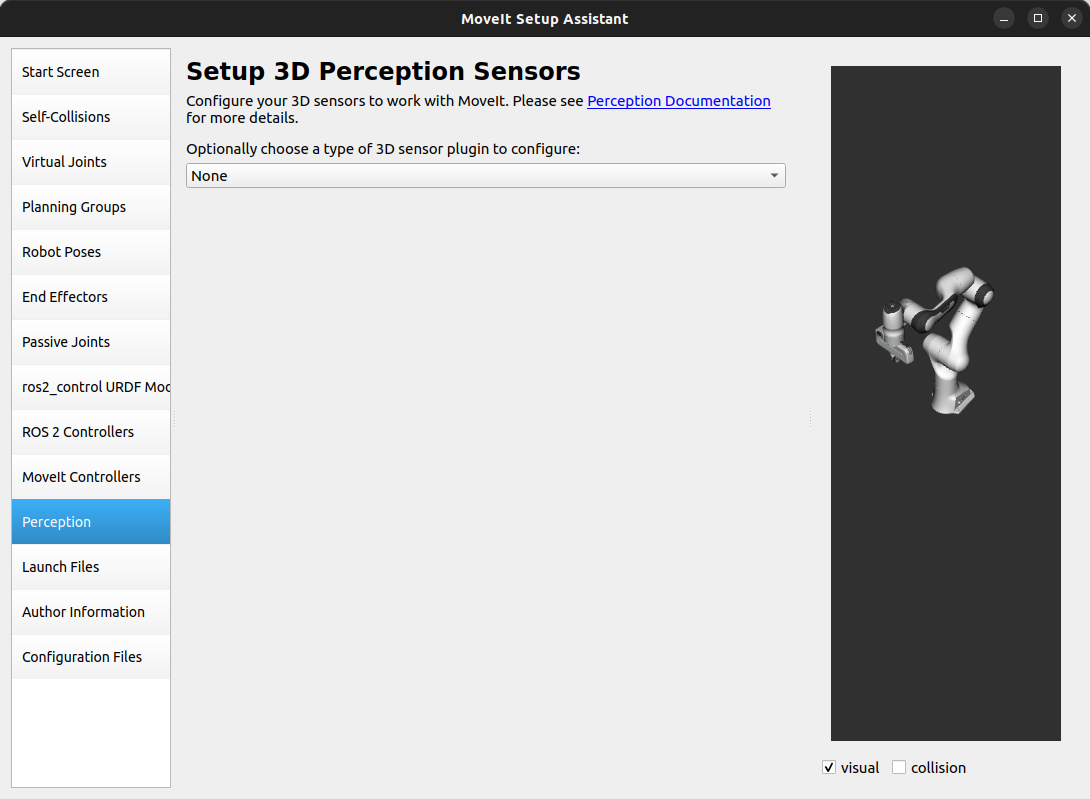
Example (for robots with cameras):
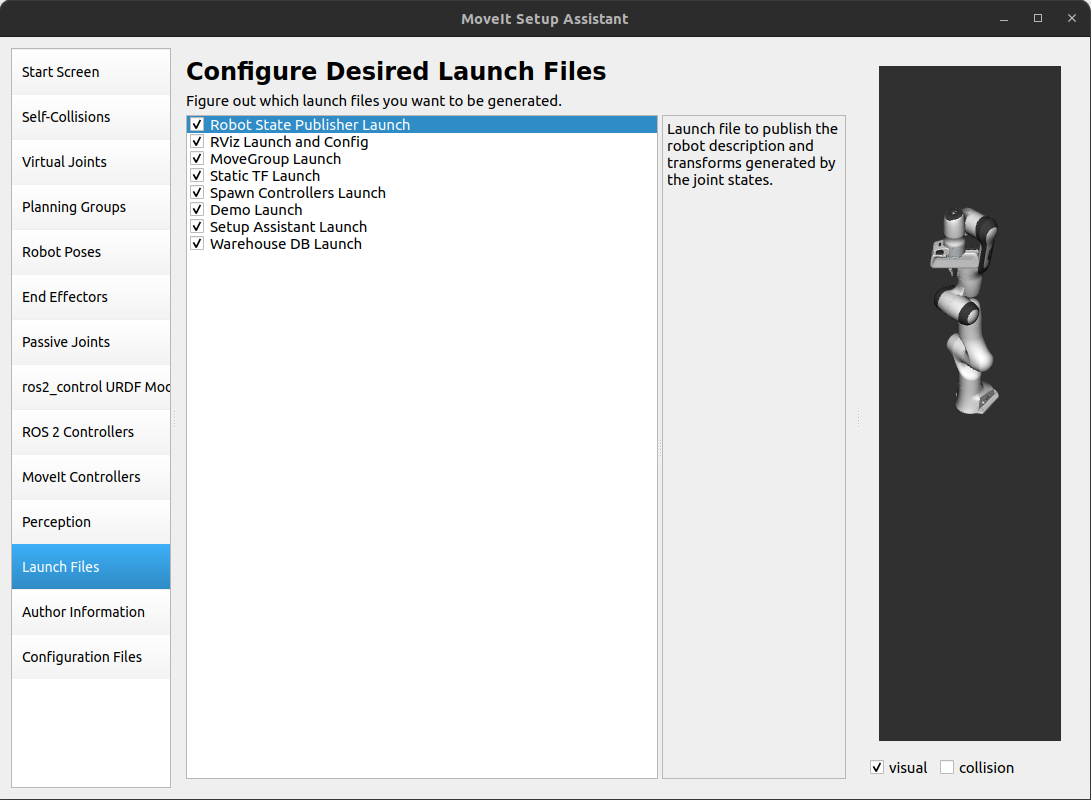
Step 12: Launch Files
View generated launch files and their purposes.
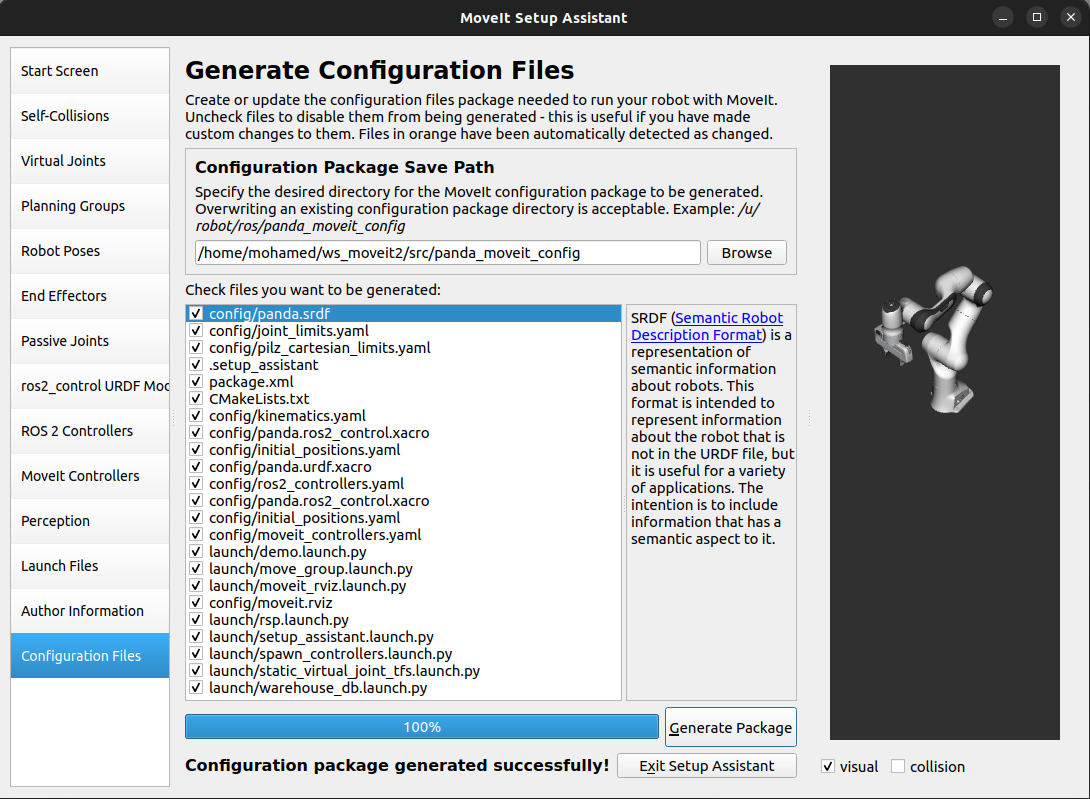
Step 14: Generate Configuration Files
Click Configuration Files, choose a location (e.g., ~/ws_moveit2/src/panda_moveit_config), and click Generate Package.
Build and Run the Demo
cd ~/ws_moveit2
colcon build --packages-select panda_moveit_config
source install/setup.bash

ros2 launch panda_moveit_config demo.launch.py
Watch the YouTube demo.